Connecting on AWS
To connect an one aws account, Maestro need to have an access_key and secret_key
Go to IAM service
Go to iam services on you AWS account dashboard.
Create an user - SecurityAudit
- Go to user tab
- Add user, select the access type as a
programmatic access - Choose to attach an existed policy on user
- Select
SecurityAuditpolicy
Getting AWS Key and Secret Key
Copy and paste the aws key and secret key
List of permissions to grant.
| server-List | ec2 describe_instances |
| loadbalance-list | describe_load_balancers and describe_load_balancers |
| dbs-list | rds describe_db_instances |
| storage-object-list | s3 list_buckets |
| volumes-list | ec2 describe_volumes |
| cdns-list | cloudfront list_distributions |
| snapshot-list | ec2 describe_snapshots |
| images-list | ec2 describe_images |
| autoscaling-List | autoscaling describe_auto_scaling_groups |
| brokers-List | sqs list_queues |
| cache-List | elasticache describe_cache_clusters |
| smtp-List | ses list_identities |
| serverless-List | lambda list_functions |
| serverless-support-List | lambda list_layers |
| dynamodb-List | dynamodb list_tables |
| gateway-List | apigateway get_rest_apis |
| security-list | ec2 describe_security_groups |
| network-list | ec2 describe_vpcs, describe_subnets, describe_vpc_peering_connections, describe_vpn_gateways, describe_vpc_endpoints, describe_route_tables, describe_network_interfaces, describe_nat_gateways and describe_network_acls |
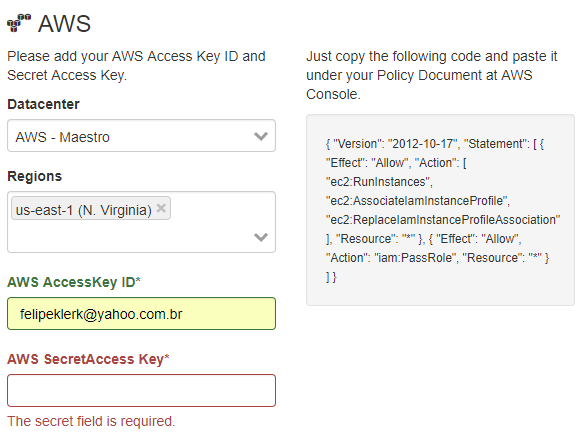
Setup connection on AWS
Note
PS: There is scheduler job activated by default, each resource type have your own window time, server-list will be updated for every 5 minutes, networks for every 2 weeks.